How to Install & Activate Oncilla OS
Follow these quick visual steps to download, launch, and activate your lifetime license on your computer.
License Key Delivery
Your unique license key is sent directly to your Email and WhatsApp.
To receive your key immediately or speak directly with our onboarding team:
Windows Installation & Launch
Windows 10 & Windows 11 · Zero complex installer needed
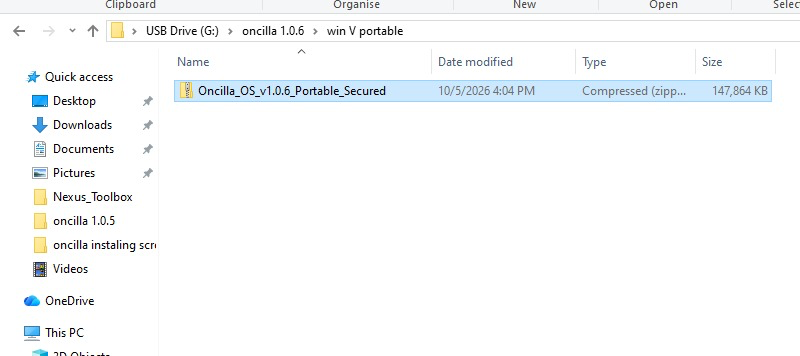
Extract the Downloaded Zip File
Go to your Downloads folder. Right-click on Oncilla_OS_v1.0.6_Portable_Secured.zip and click Extract All....
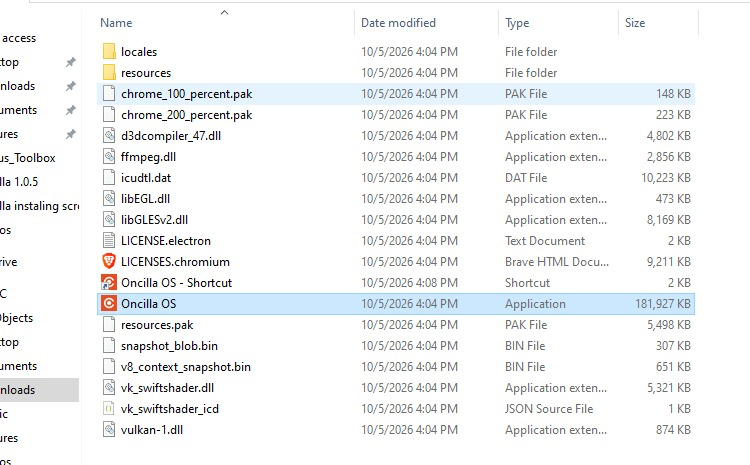
Open the Folder & Double-Click Oncilla OS
Open the extracted folder and double-click the file named Oncilla OS.
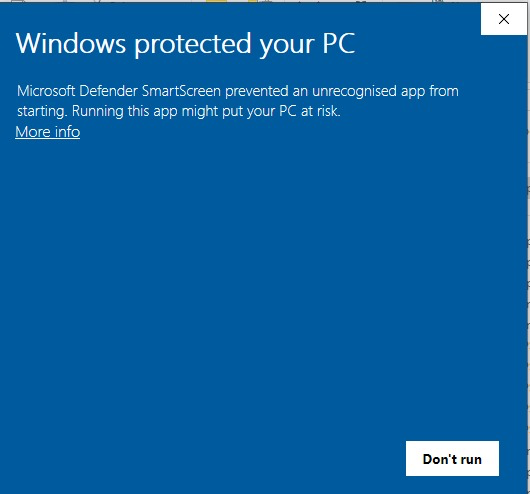
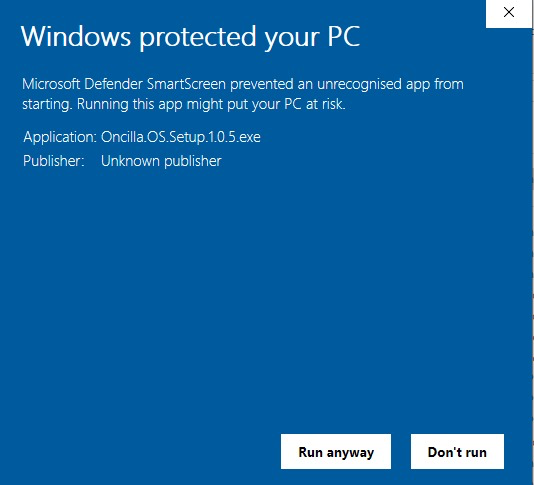
Bypass Windows SmartScreen (First Launch Only)
If Windows Defender shows a blue security screen "Windows protected your PC", follow these 2 quick clicks:
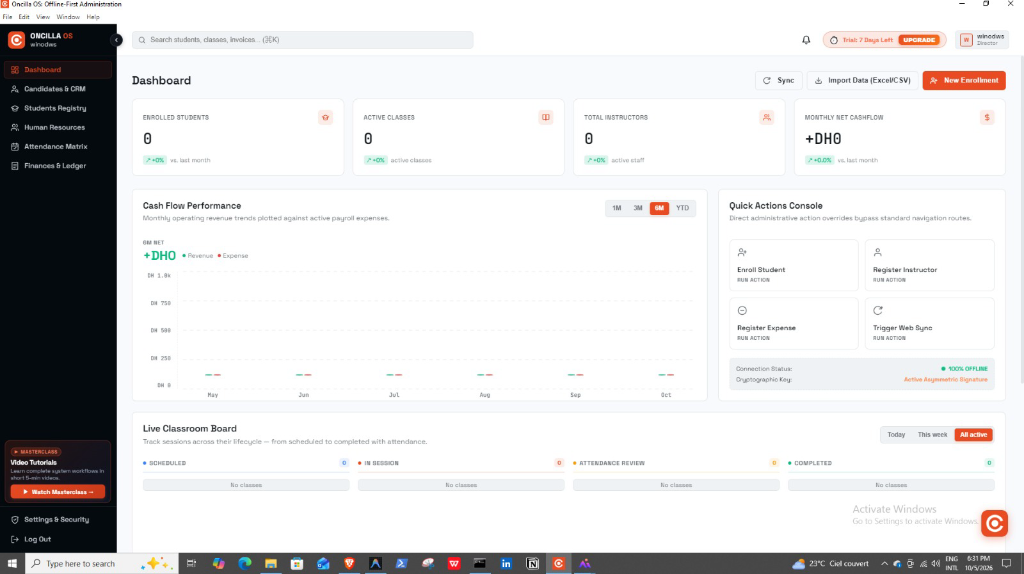
Enter License Key & Start
Paste the lifetime license key you received on WhatsApp / Email. Your offline database is unlocked instantly!
macOS Installation & Launch
Apple Silicon (M1/M2/M3/M4) & Intel Macs
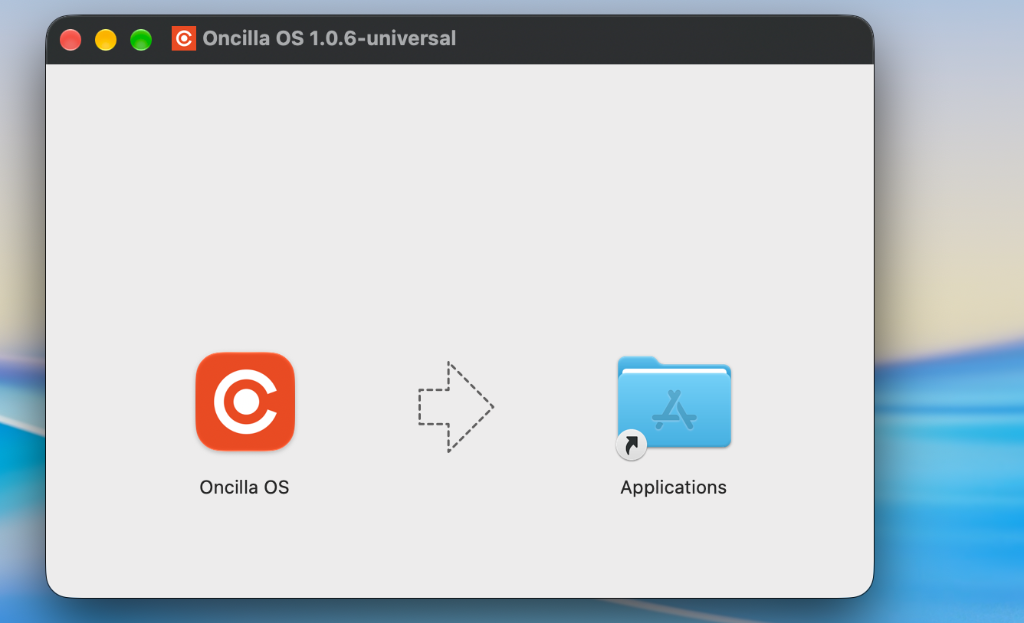
Open the Downloaded .dmg File
Double-click Oncilla.OS-1.0.6-universal.dmg in your Downloads folder.
Drag Oncilla OS to Applications
In the window that opens, drag the Oncilla OS icon into the Applications folder.
First Launch (Gatekeeper Permission)
Open Applications. If macOS shows "App cannot be opened because developer cannot be verified":
1. Right-click (or Control+click) on Oncilla OS in Applications.
2. Click Open.
3. In the pop-up window, click Open again.
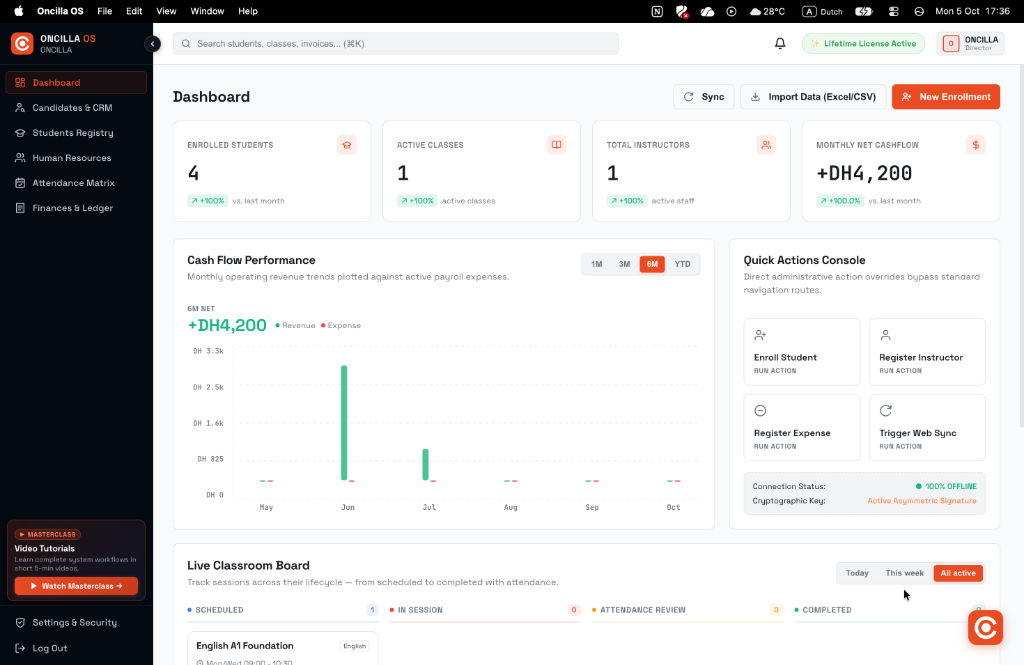
Oncilla OS is Ready to Use
Oncilla OS will launch natively. Enter your license key to unlock your offline management dashboard.
Need Help or Guided Assistance?
Our team is available 24/7 on WhatsApp to provide your license key and assist you step-by-step.
Message Support on WhatsApp (+212 660-926450)